Sheet music app for vibraphone: playbacks and loop
Vibraphone in a jazz quartet, in a duo or in the big band: playback, loop and keyboard guide – for Apple and Android.

Bars thought of as keys
The layout of the keyboard helps with orientation.
The vibraphone has metal bars that are arranged exactly like the keys of a piano: the naturals in front, the sharps behind. The keyboard beneath the notes in NovaNota shows the same layout. During playback the notes light up, and a tap plays them.
The vibraphone spans from f to f³, three octaves, and sounds as written.
Soloing to a jazz playback
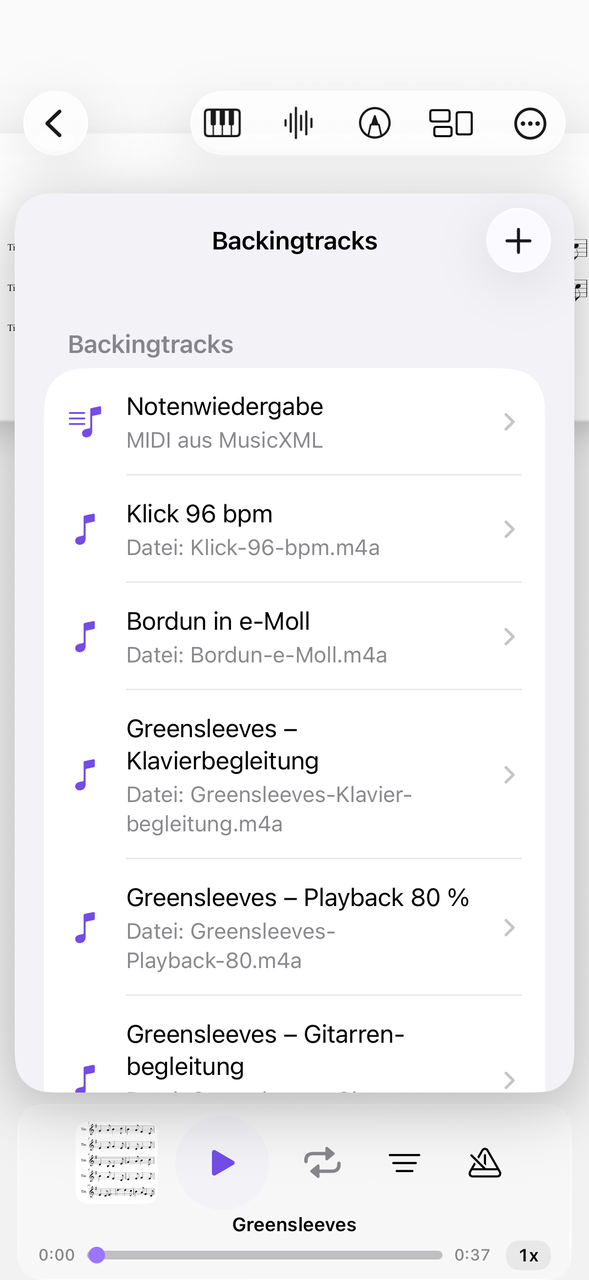
Attach audio to the piece.
For changes you need accompaniment. Attach a playback of piano, bass and drums as an audio file to the piece and play your melody and your solo over it. Tempo and loop are adjustable; you also control playback with the headphone buttons or from the lock screen.
The difficult changes in a circle
One chorus, as often as you like.
Put four or eight bars with fast chord changes into the A–B repeat and play them until the chord tones are in your hands. The loop range stays saved for each piece.
How to practice a jazz standard
Three steps from the lead sheet to the solo.
Load the lead sheet
Import the lead sheet as a PDF or MusicXML and put it in a collection.
Add the playback
Attach a playback to the piece and set the tempo slow at first.
Chorus after chorus
Play a solo on loop, record yourself and listen back to what you do differently on the next chorus.
Going well with it are the marimba, glockenspiel and piano. All percussion on one page.
Everything for rehearsal and practice
NovaNota can do more – for your instrument as well as for the whole band, choir or orchestra.
Pen annotations
Fingerings, breath marks, chords: write straight onto the music with the pen – in PDF and MusicXML, with several colors and markers.
Turn pages with your foot
Bluetooth pedals are recognized right away, and a tap on the edge of the page turns it, too. Your hands stay on the instrument.
Metronome and A–B repeat
You set time signature and tempo right on the piece. You practice tricky bars as a loop – NovaNota remembers the range for every piece.
Record yourself
Record your practice right in the app and listen back to how your intonation and tone sound. The recording is automatically attached to the piece.
Rehearsals in the calendar
Orchestra rehearsals, concerts and lessons with meeting point, dress code and program. You can simply subscribe to the calendar of your orchestra, choir or band.
On all your devices
Your library stays up to date via iCloud (on Apple devices), NextCloud or Google Drive – on tablet, phone and Mac, Apple or Android.
Frequently asked questions
Can I see chord symbols?
With NovaNota Pro you write chord symbols into your music yourself, together with lyrics and several tracks.
What about the motor and the damper pedal?
They belong to the instrument; NovaNota helps with sheet music, tempo, loop and playback.
Can I turn a track off to play it myself?
Yes, each track has volume and on/off. That way you switch off the melody and play it yourself.
Which devices does NovaNota run on?
On iPhone, iPad and Mac with Apple silicon, as well as on Android phones and tablets. There is a separate app for Apple Watch.
How much does the app cost?
Free for up to three pieces, with no time limit and no account. NovaNota Pro unlocks unlimited pieces and notation editing.
Try it with your own sheet music.
Free for up to three pieces, with no time limit and no account – for Apple and Android.